Quick Start
To use DMPonline, first you will need to create an account. You can either create one manually or sign in using your VU Single Sign-On (SSO) credentials.
Creating an account
Users of DMPonline should first create an account. This can be done both with a VU or ACTA email address.
Creating an account with VU or ACTA email address
If you prefer to use your VU or ACTA email address for DMPonline, you can create your own account with that email by following the steps below.
Go to the VU DMPonline page
On the welcome page, click
Create accountat the right top of the screen.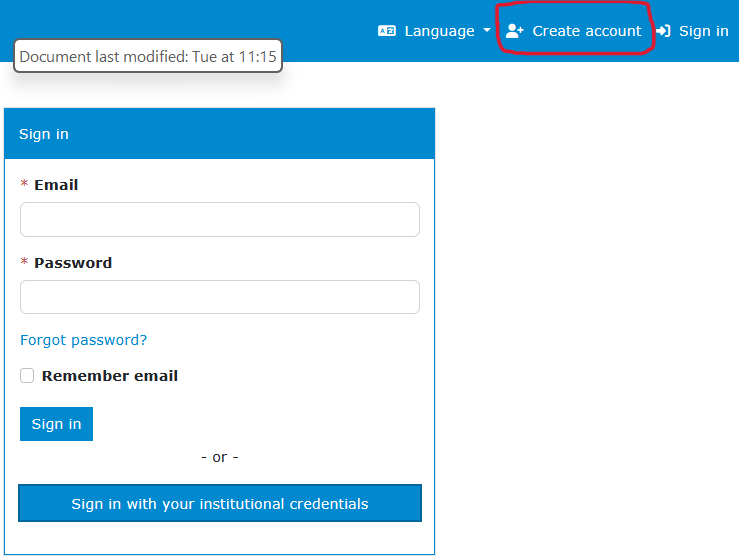
Screenshot of welcome page of DMPonline, pointing to Create account Enter your VU or ACTA email address, complete the the required fields, and make sure to select
Vrije Universiteit Amsterdamas organisation. This will enable you to select the VU templates.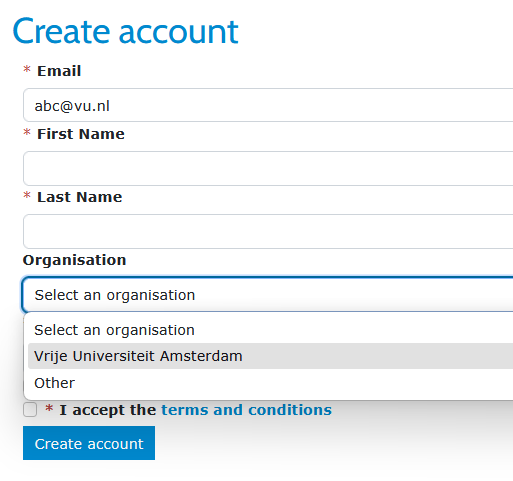
Screenshot of DMPonline page for creating an account based on a VU email address
Creating an account with a non-VU email address
If you do not have a VU email address, you can create an account using another email address by following the steps below. To start, go to the VU Amsterdam DMPonline homepage.
On the welcome page, click
Create accountat the top right of the screen.Screenshot of welcome page of DMPonline, pointing to Create account Enter your email address and add the other details. Type in ‘Vrije Universiteit Amsterdam’ as the organisation. This will enable you to select VU templates as well as request feedback from an RDM expert at VU Amsterdam.*
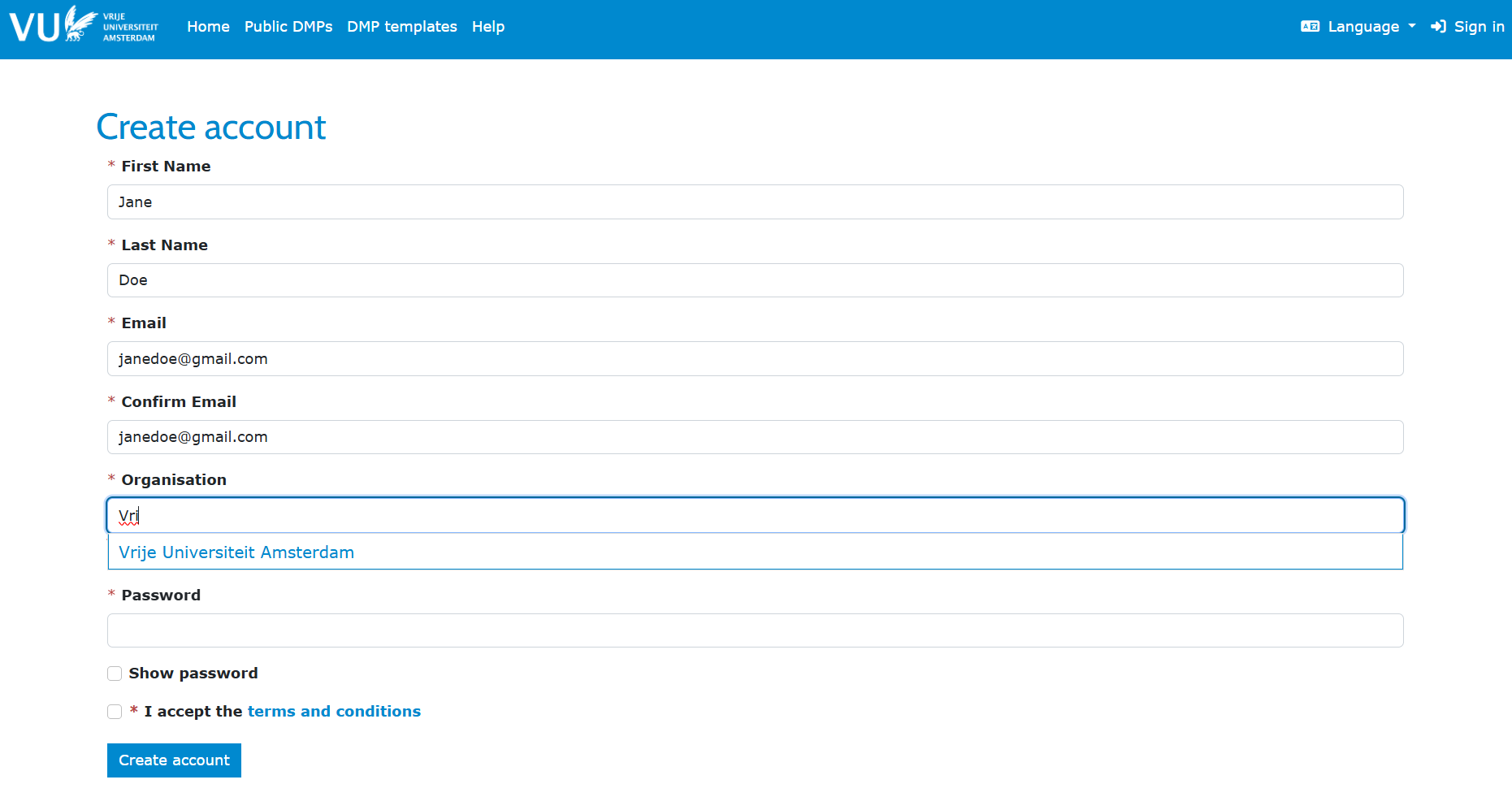
Screenshot of DMPonline page for creating an account based on a non-VU email address
Logging in with the SSO Portal
After creating your account, you can link your institutional credentials through Single Sign‑On (SSO). This will allow you to log in with your VU email address and VUnetID in the future, instead of using the password you created manually.
On the welcome page, click on
Sign in with your institutional credentials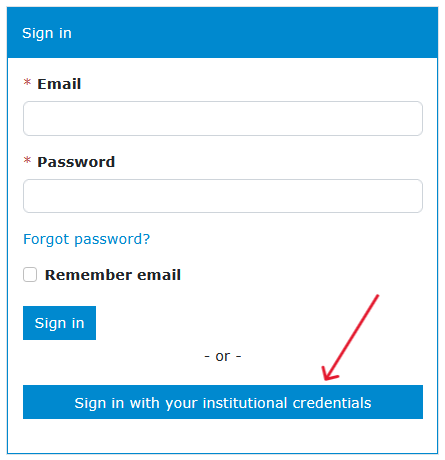
Screenshot of welcome page of DMPonline, pointing to option to sign in with institutional credentials If you visist DMPonline for the first time, you have to enter
vrije universiteit amsterdam, select the entry that appears and clickContinue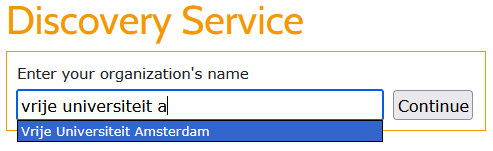
Screenshot of sign in page of DMPonline in which you can enter and select Vrije Universiteit Amsterdam as organisation If have have logged in via SSO before, you will see the VU logo and you can click that to access your DMPonline account.
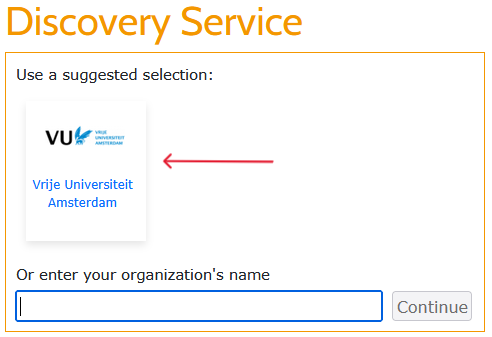
Screenshot of sign in page of DMPonline in which you can select Vrije Universiteit Amsterdam as organisation by clicking the logo If you are not already logged in to other VU systems in your browser, you will be redirected to the VU login page, where you can enter your VUnetID and password. If you are already logged in elsewhere, DMPonline will recognise your credentials automatically and take you directly to your DMPonline dashboard.
More detailed instructions
DMPonline provides built‑in guidance and example answers for the questions in the VU DMP template. You can use this guidance to help you write your DMP.
The guide How can you set up research data management from the start? contains more specific instructions on selecting the right template for your DMP or GDPR registration.
The Help page in DMPonline explains the functionality of the tool, including how to share and download DMPs and how to request feedback.
- If you are an external researcher and selected “Other” as your organisation in an earlier version of this page, some features may not be available to you. In particular, you may be unable to request feedback from a VU Amsterdam RDM expert or access VU DMP templates.
To receive feedback on your DMP, you can add an RDM expert as a contributor. This will allow them to access your DMP and provide comments and recommendations.
If you would like or need access to a VU DMP template, please contact the RDM Support Desk.