Quick Start
As a security measure eduVPN Institute Access is mandatory to connect to SciStor, both on- and off-campus. Install the app from the eduVPN portal if you have not already done so.
Note that logging in to eduVPN requires MFA with SURFsecureID. All of the employees of the VU have an activated token, but this is not automatically the case for students. The 🔒 VU service portal has more information on how to register for SURFsecureID if you have not already done so.
Connecting to your project folders
Connect to eduVPN
Make sure you are connected to eduVPN institure access first. 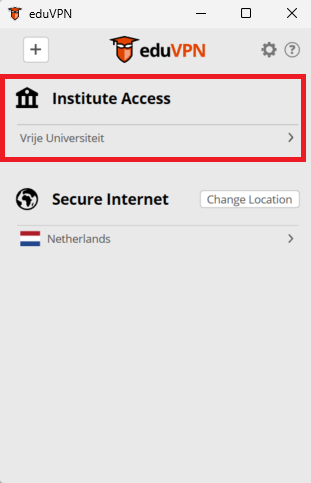
Select Institute Access and follow the usual steps to login with your VUnetID.
Then follow the instructions for your Operating System.
MacOS
- Open the Finder application
- In the “Go” menu, pick “Connect to Server…” or press “⌘K”
- Fill in:
smb://scistor.vu.nl/shares - Click “Connect”
- Select “Registered User” if this is not yet selected
- Fill in your VUnetID and password
- Press “Connect”. Optionally, tick the “Remember this password in my keychain” checkbox. After doing this, macOS will no longer ask for credentials the next time this connection is used.
SciStor project folders appear on the left after opening the SciStor location. You may open the desired SciStor project folder by double-clicking it.
Windows
- Open Windows File Explorer
- Right-click on This PC and choose “Map network drive…””
- Select a desired drive letter, for example S. In the Folder field you can enter the following:
\\scistor.vu.nl\shares\<the name of the project folder>. Make sure the checkboxes are checked. - Click “Finish”
- You will now be asked to log in. This is not possible with your PIN code. Choose the “More choices” option, and log in with your VU email address and password
‘Green’ Linux workspaces
Green Linux workplaces (supported by VU IT) have a connection to SciStor from home. All SciStor project folders can be found under the path /research.
Other Linux workstations
Other self-managed Linux workstations can connect to SciStor via the Samba protocol:
$ sudo apt install cifs-utils
$ sudo nano /etc/credentials/<vunetID>
    # nano
username=<vumail@vu.nl>
password=<your-vunet-password> # you can put you password for convinence, otherwise you have to type your password everytime.
$ sudo mkdir -p /data/VU/shares/<name-of-your-folder>
$ sudo mount -t cifs //scistor.vu.nl/shares/<name-of-your-folder> /data/VU/shares/<name-of-your-folder> -o credentials=/etc/credentials/<vunetID>
The scistor project folder will be mounted at location: /data/VU/shares. To unmount it, simply do:
$ sudo umount /data/VU/shares/<name-of-your-folder>The path /data/VU/shares is just a suggestion, you can choose any mount path that suits your setup.