Your first scan
To start a new plagiarism scan you must select the folder ‘My Files’. After selecting the folder, the section ‘Upload’ appears on the right side of the screen. You can submit your document by choosing ‘Upload’.
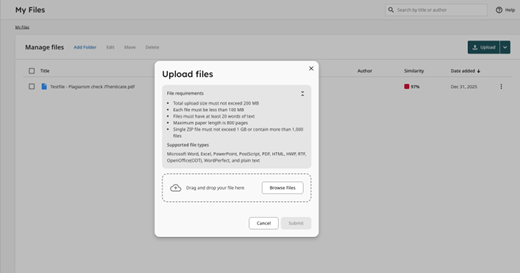
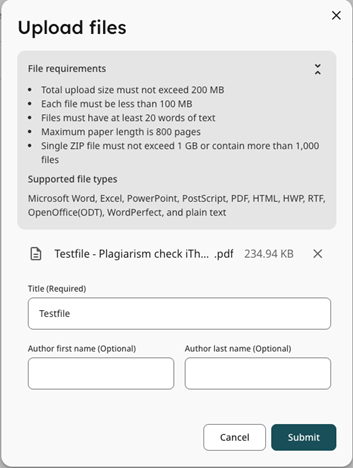
You will be asked to fill in your first name, last name and the title of the document. Next, you can submit the document that you want to be scanned by browsing via the ‘Choose File’ button. The requirements of the file can be found on the right side of the screen – the file should not be larger than 100 MB or 800 pages, and can be a variety of document types, such as Word, PostScript, PDF, HTML, Excel, PowerPoint, Word Perfect WPD, OpenOffice ODT, RTF and Hangul HWP.
To start the plagiarism scan, select the button Submit.
It can take some time for the tool to process the scan. You can monitor the processing status in your selected folder, which is first indicated by saving, followed up by processing, and is completed when the similarity percentage (%) is shown. This indicates the percentage of the submitted text that is similar to online sources that are part of the iThenticate database.
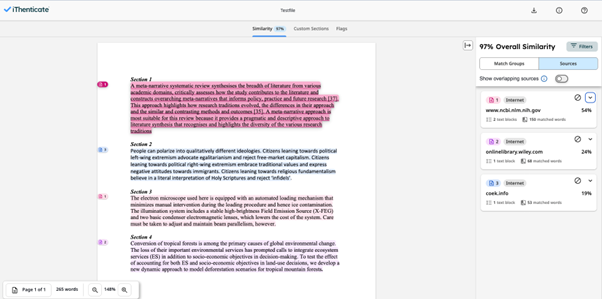
Below you can find an example of a submitted file (test file) which shows 97% similarity with online sources part of the iThenticate database.

The similarity percentage in itself is not a direct indication of plagiarism. The results of the scan must always be analysed by the PhD candidate together with the (co-)supervisor. The (co-)supervisor can help to interpret the results. Further assistance and more information about completing your mandatory plagiarism check is available via the key user for iThenticate.
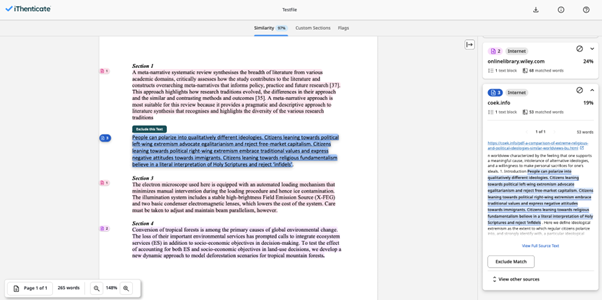
A detailed view of the similarities found by iThenticate can be accessed by clicking on the file title. The texts that are found similar to online sources are highlighted with different colours, each colour corresponding to a different source. The sources of the similarities can be found on the right side of the screen. By clicking on a source (right side of the screen) or the highlighted text (left side of the screen) a drilldown to the source can be made, as well the location of the specific text within the source.