Data access on Linux
This page explains how to connect to the Yoda WebDav interface by either using GNOME Files or davfs2.
Connecting to the Yoda WebDAV interface using GNOME files
GNOME users can connect to the Yoda WebDAV interface with GNOME Files (also known as Nautilus in older versions of GNOME).

- Type
davs://data.yoda.vu.nl/in the address bar.
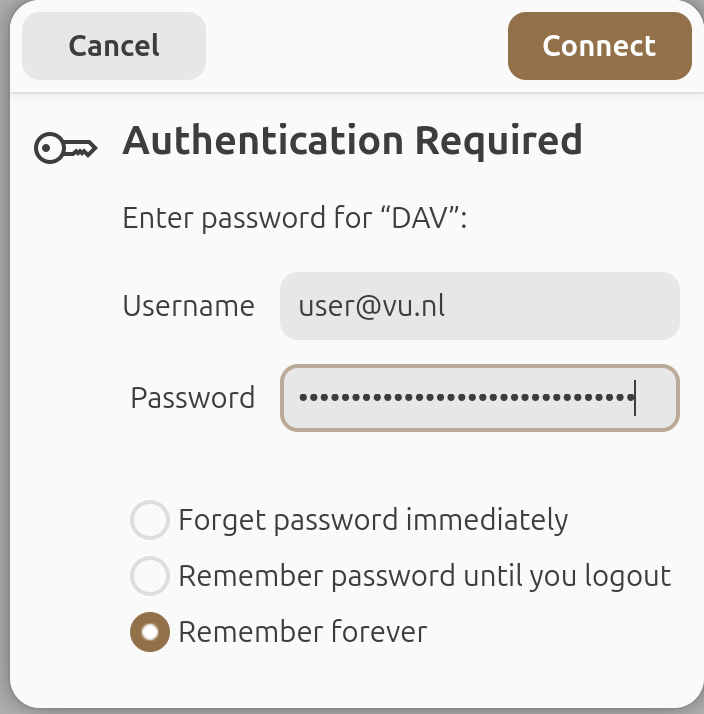
You will be prompted for a name and password. Username is your email. Set a Data Access Password and copy it to the Password field.
Click on the Connect button.
Connecting to the Yoda WebDAV interface using davfs2
This section describes how to connect to the Yoda WebDAV interface on a Linux system using davfs2. It assumes familiarity with command-line tools. The instructions are suitable for RedHat-based distributions (e.g. Fedora or CentOS) and for Debian-based distributions (e.g. Ubuntu).
Installing the package
- Install the davfs2 package.
For Debian/Ubuntu:
sudo apt update
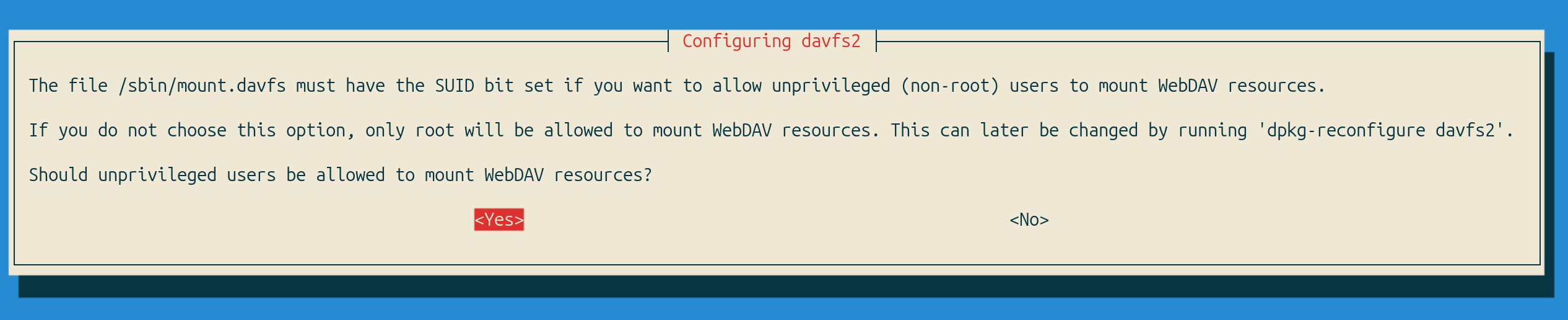
sudo apt -y install davfs2- Confirm that unprivileged users should be able to mount davfs2 volumes (“Yes”).
For RedHat/CentOS/Fedora:
sudo yum -y install epel-release
sudo yum -y install davfs2
Configuring group membership
Look up your user name, uid and gid using the
idcommand.Add your user account to the davfs2 group:
sudo usermod -aG davfs2 user(replace “user” with your user name).Close the terminal window and open a new one to activate the group change.
Configuring Davfs2
Open the davfs2 configfile in a text editor (e.g.
sudo vi /etc/davfs2/davfs2.conf). Ensure parameter delay_upload is set to 0 (zero). This limits the risk of data loss from a failure to flush data after large file transfers.Open the /etc/fstab file in a text editor (e.g.
sudo vi /etc/fstab) and add a configuration line for Yoda:
https://data.yoda.vu.nl /mnt davfs user,auto,uid=1000,gid=1000 0 0- And adjust the parameters as needed:
- If you’d like to mount the Yoda in a different location, replace
/mntwith a different local directory. - Replace the
uidandgidparameters with your uid and gid, as shown by theidcommand. - If you don’t want Yoda to be mounted automatically after your system starts, remove “auto,” from the options.
First set a Data Access Password.
Now use a text editor to create a secrets file, which contains your Yoda WebDAV URL, Yoda user name and password, separated by spaces. If you are an employee or student at Vrije Universiteit, your user name is your VU email address (in lowercase) and your password is your Data Access Password.
Example of a secrets file:
https://data.yoda.vu.nl xxx@vu.nl myDataAccessPasswordRemember that you will need to replace the password when it expires.
You need to escape any backslashes and double quotes in your password with a backslash (e.g. use
\\instead of\).Install this secrets file as the global davfs2 secrets file:
sudo install -m 0600 -o root -g root secrets /etc/davfs2/secrets
rm secrets
The disk should be mounted automatically after a reboot if you have configured the auto option in /etc/fstab.
To manually mount the Yoda WebDAV interface:
- On Debian/Ubuntu:
mount /mnt - On RedHat/CentOS/Fedora:
sudo mount /mnt(you can ignore any warnings about writing to the mtab file)
Using rclone
As an alternative you could use rclone, it offers some useful functionalities to transfer larger ammounts of files via the WebDAV protocol.
Using irods command-line tools
Since Yoda is based on iRODS technology, it is possible to transfer data to and from Yoda using the iRODS communication protocol. This protocol can be used to transfer large amounts of data in an efficient way. Command-line tools are available for Linux.