Data access on MacOS
There are 2 basic ways to access Yoda data from a Mac: mounting the Yoda WebDAV interface in finder or via file transfer tools, in which case we recommend Cyberduck. Which one works best depends on your workflow.
For more information on how to configure Cyberduck consider reading the Cyberduck page.
Mounting the Yoda WebDAV in Finder
- You can open the Yoda WebDAV interface using the Finder app. By default, the Finder icon is shown in the bottom left corner of your screen, in the Dock. Click on this icon.

If you don’t see the Finder icon, you can alternatively start Finder by pressing the command key and the space bar, then typing “finder” and pressing enter.
- Now press the command key and the “K” key to connect to the Yoda server. You should now see this dialogue box:
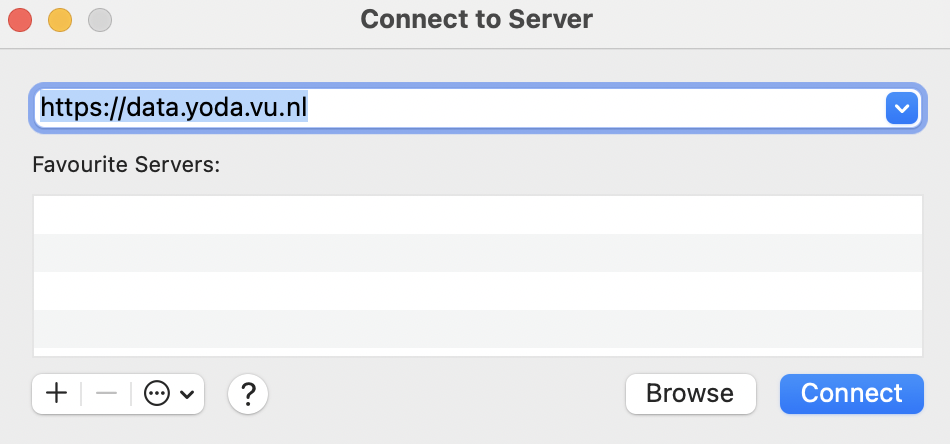
- Enter https://data.yoda.vu.nl/ as server address.
The Finder app will show a confirmation dialogue box, similar to the one below. The address shown in the dialogue box should be the address you entered in the previous dialogue box.

- Press the Connect button.

You should now see a credentials dialogue box. The “Connect as” setting should be set to “Registered user”. “Name” should be your email address.
- Create a Data Access Password and copy it to the Password field. Tick the checkbox
Remember this password in my keychain. Click on the connect button.
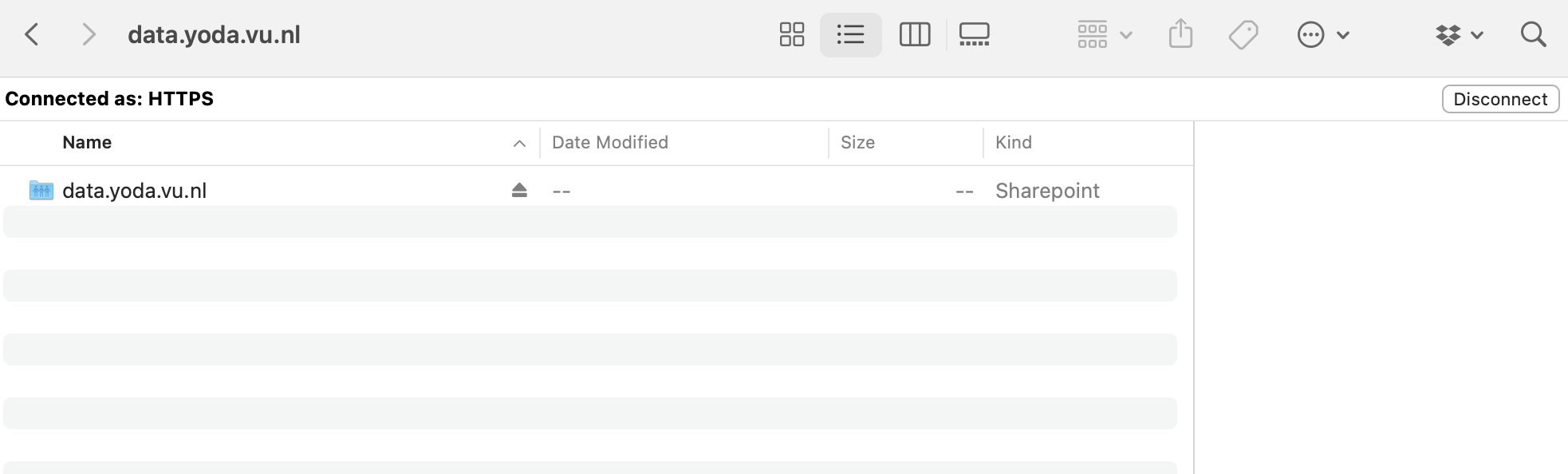
You should now have a new Yoda location in Finder. Its name is the network address you entered before. You may have to scroll down in finder in order to see it.
Using Rclone
Rclone is a command-line program to manage files on cloud storage. It is a feature-rich alternative to cloud vendors’ web storage interfaces. Over 40 cloud storage products support rclone including S3 object stores, business & consumer file storage services, as well as standard transfer protocols. You can find more instructions for using rclone on the dedicated page.