Selecting a licence for your dataset
When you archive your data, you can indicate the terms and conditions on how your data can be accessed and for what purposes it can be reused, or whether it can be reused at all. Here is some useful information on selecting and writing a licence1. We also offer options to get advice about selecting and creating your licence, but you remain responsible for your eventual choice.
Make sure the data does not contain sensitive information before making it publicly available through a CC-BY or other open licence. You can check this through the Data Classification Tool and when uncertain by contacting the Privacy Champion of your faculty (in case of personal data) or Legal (Add ‘advice licence
There are several different licences that can be selected for your dataset. These can be separated into three categories: Open, Restricted & Closed.
Open
This information applies when your data can be published openly, so that anyone can access them.
There are several standard Creative Commons licences available to make your dataset directly accessible for other users. In general, these licences are preferred as they allow easy re-use by others. Moreover, they are well known, which ensures that others quickly grasp how they may use your data. The variations of these licences indicate the following aspects: author attribution requirement, commercial use, modification of the dataset and changing the licence of any modified dataset. A useful decision tree can be found on the Creative Commons website.
Another open licence is the Open Data Commons Open Database License (ODbL), which can be used specifically for databases.
Restricted
When your data can be reused for new research, but not through an open licence, it is important to state with whom the data can be shared and under which conditions and for what purposes the data can be used. The reasons for choosing a restricted licence may vary from field to field but often apply to human subject data and data that was provided by a company but only under specific conditions. Another reason for choosing a restricted licence is a personal preference.
How to: Using the VU Restricted License
Download the VU Restricted License template.
Check which conditions and requirements apply to the reuse of the data based on VU RDM guidelines, laws regarding use of data (GDPR, Intellectual Property legislation, etc.), requirements from funders or collaboration parties and conditions mentioned in the informed consent form signed by participants.
Alter the template by indicating the potential usage purposes of the data and/or any regional restrictions. If you wish to receive advice on creating your licence you can contact the Privacy Champion of your faculty (in case of personal data) or Legal (Add ‘advice custom licence data management
’ as the subject header in your mail).
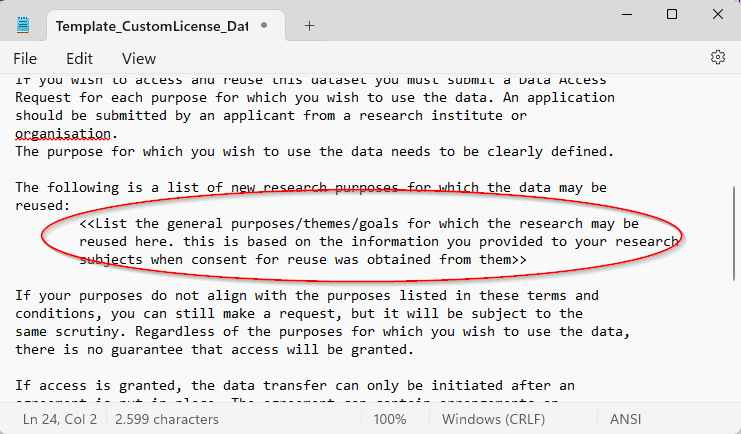
Save the document as txt file: License.txt.
Upload the file to your root data folder in Yoda.
When creating a data package for archiving select Data Package Access “Restricted” and set
Licenseto “Custom” in the Metadata form and make sure the licence is included.
Closed
Under certain circumstances, it becomes undesirable, inadvisable or even illegal to reuse your data for new research. The provider of the data may prohibit sharing the data or the signed informed consent form may forbid sharing the data with third parties. In this situation you can use the VU Closed licence template. The VU always retains the right to access the dataset for verification purposes.
How to: Using the VU Closed License
Download the VU Closed License template template.
Alter the template to include the reason for not being accessible by third parties.
Save the document as txt file: License.txt.
Upload the file to your root data folder in Yoda.
When creating a data package for archiving select Data Package Access “Closed” and set
Licenseto “Custom” in the Metadata form and make sure the licence is included.
Footnotes
Following VU Amsterdam’s communication guidelines, the Research Support Handbook, in principle, uses British spelling. In this case: licence. But many tools, including Yoda, use American spelling: license. In order not to confuse the user, we use ‘license’ to refer to the specific metadata fields in Yoda, or to the names of specific licences mentioned on this page. A similar choice was made on the page about software licensing.↩︎